The Pulling & Stacking Console
The Pulling & Stacking Console is one window that shows every instrument the indicator is running on. Each instrument gets a tile with its live readout, the four-window σ ladder, and a scrolling log. Alerts for all instruments collect in a Global notifications log at the bottom of the same window.
The detailed readout lives in the console instead of being stamped over the chart, so the flow lines on the chart stay clean.
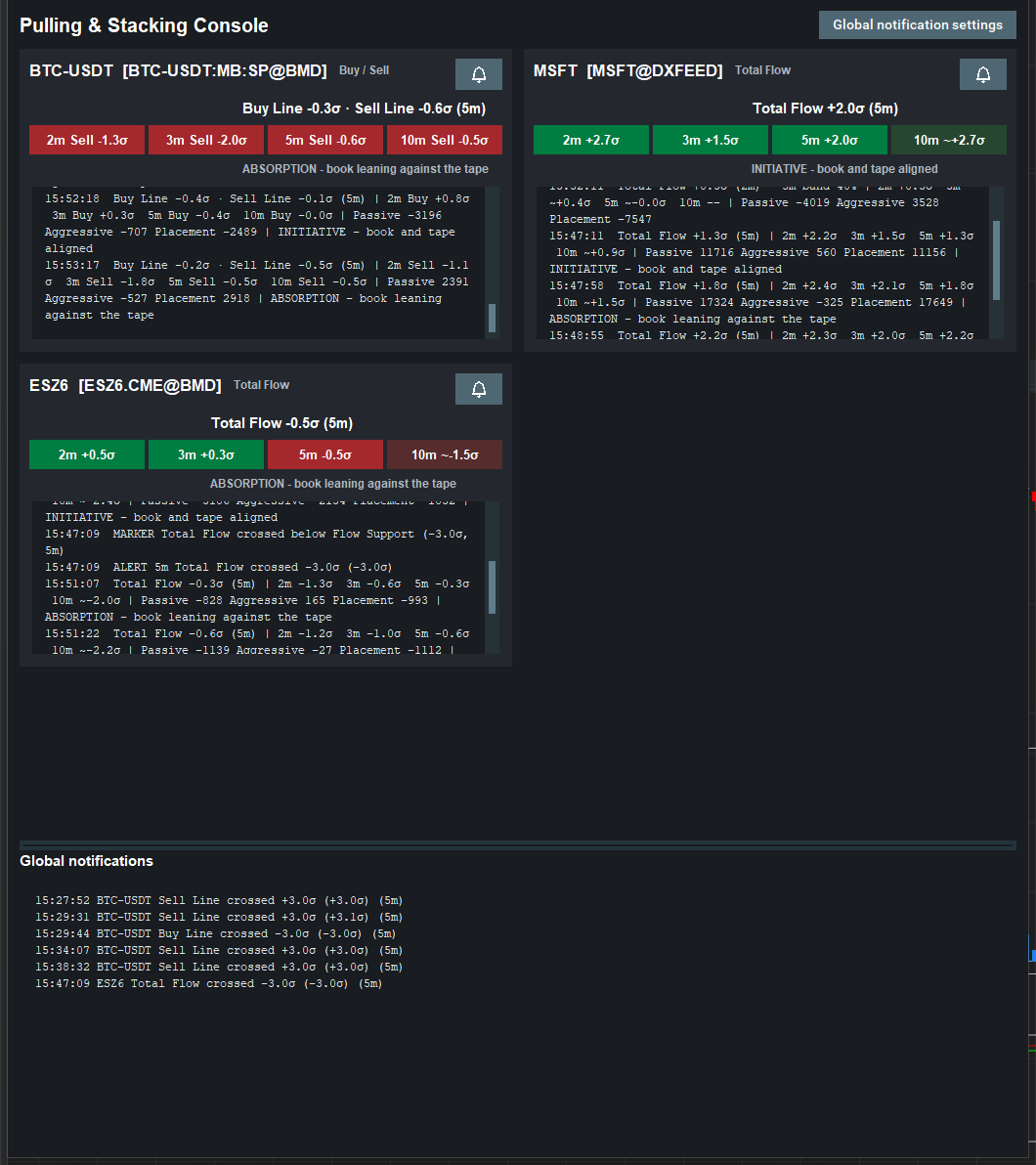
What a ticker tile shows
Each tile has, from top to bottom:
- Instrument name and the feed it is subscribed through, the line the
chart is set to (for example
Total Flow,Placement FloworBuy / Sell), and a bell button for that instrument's alerts. Every reading on the tile is about that line. - Headline. One of:
Total Flow +4.2σ (5m): the live reading on the primary window. On a chart set to another core line the headline names it:Passive Flow -3.6σ (5m).Buy Line +3.5σ · Sell Line -1.0σ (5m): a chart in Buy / Sell mode: both lines, each measured from the centre of their shared band.Total Flow +1.9σ (2m) - 5m band 40%: the primary band is still seeding, so the headline shows the longest window that is fully seeded.Total Flow ~+2.1σ (5m) - warming 40%: a provisional estimate (note the~).WARMING UP 12% - 25 min band: nothing is seeded yet.STALE - no events since 09:41:07(orange): no market events have arrived for longer than the stale timeout.WAITING FOR ORDER BOOK DATA: the instrument has not sent any depth data yet.PAUSED - accept the terms or check the remote configuration: output is withheld (see updates & security).- The σ ladder. Four badges for the 2, 3, 5, and 10 minute windows, for the
chart's line. In Buy / Sell mode each badge shows whichever line is further
from the band's centre, named:
5m Buy +3.5σ. A badge is green when the reading on that window is bullish (buy orders stacked or sell orders pulled) and red when it is bearish (sell orders stacked or buy orders pulled). In Flow mode that means a positive reading is green and a negative one red. In Buy / Sell mode,Buy +2.6σis green andBuy -2.6σis red, whileSell +1.7σis red andSell -1.7σis green. A badge is grey with--while that window is warming up or the feed is stale. A muted badge with~is a provisional estimate (see indicator states). - State line when one applies:
! TOP OF BOOK FIGHTING THE DEEP BOOK(orange, the deep-book warning) orABSORPTION - book leaning against the tape/INITIATIVE - book and tape aligned(the book-vs-tape state). - A scrolling log. A line is added when the reading's status changes (waiting for data, warming up, provisional, live, stale), and when the state line changes and the new state has held for 10 seconds. A steady reading adds no lines. Each line carries the full reading at that moment:
15:53:31 Total Flow +4.2σ (5m) | 2m +1.4σ 3m +2.5σ 5m +4.2σ 10m +4.0σ | Passive 2030 Aggressive 8 Placement 2022 | INITIATIVE - book and tape aligned
headline, ladder, the Passive, Aggressive and Placement components in
contracts, then the state. Alerts for that instrument's time bands appear in
the same log, naming the line: ALERT 5m Total Flow crossed +3.0σ (+3.4σ).
The log is bounded and scrolls automatically.
Reading several instruments at once
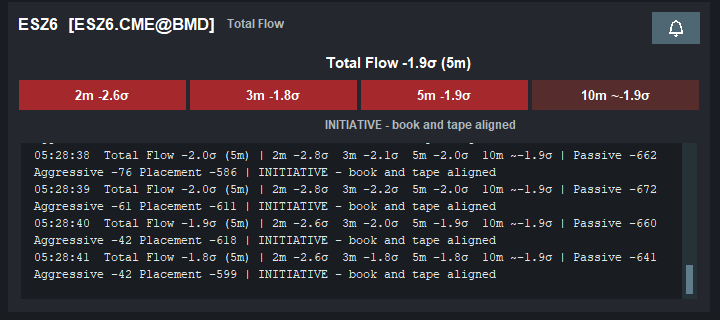
Tiles arrange themselves in a grid that reflows as the window is resized. Each
window of each instrument warms up independently, so a newly added instrument shows
WARMING UP while the others are live.
- Bookmap: one tile per instrument subscription, including the same symbol subscribed through two different feeds.
Price-chart markers
If your eyes are on price, not on the flow panel, the markers bring the signal
to where you are looking. An arrow is drawn on the price chart, and a MARKER
line is added to that instrument's log on its console tile, when the line your chart trades from crosses
outside its own Resistance or Support on the primary window:
MARKER Total Flow crossed above Flow Resistance (+3.2σ, 5m)
MARKER Buy Line crossed above Buy/Sell Resistance (+3.1σ, 5m)
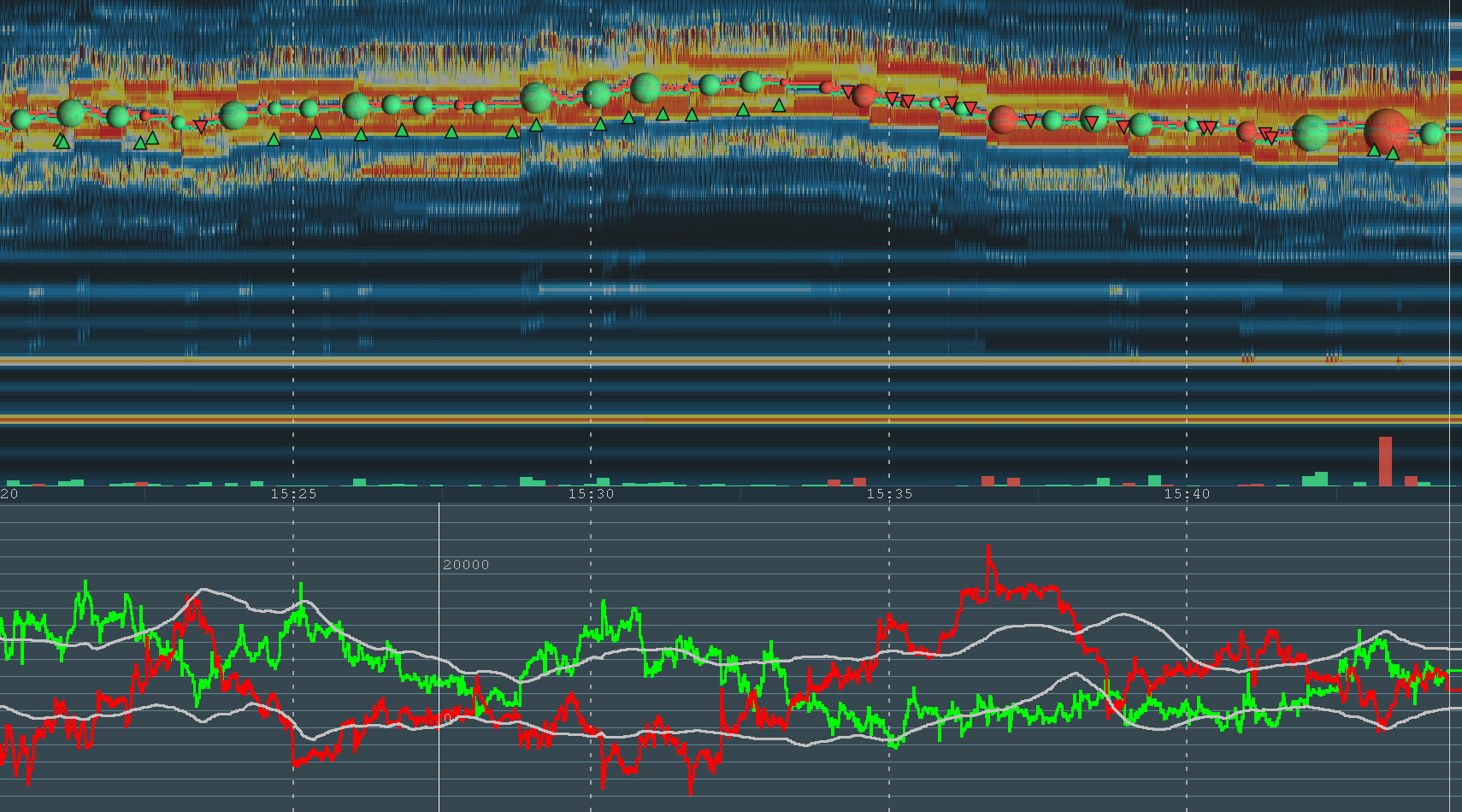
Bookmap, BTC-USDT in Buy / Sell mode. Green arrows below the price mark bullish crossings and red arrows above it mark bearish ones; each sits where the Buy Line (green) or the Sell Line (red) in the panel below crossed outside its band. Shown with a 2-minute window and a 2σ band so that several crossings fit in one picture; at the defaults (5 minutes, 3σ) arrows are less frequent.
| Line mode | Lines that draw arrows | Against |
|---|---|---|
| Flow | The core line only (Total Flow by default) | Flow Resistance / Flow Support, sized from that line |
| Buy / Sell | Buy Line and Sell Line (each can be switched off) | Buy/Sell Resistance / Support of the pair on screen |
Every arrow quotes a σ figure, because every arrow is read against its own line's band. The arrow shows what the crossing means for the market, whichever line drew it:
- A green arrow pointing up, below the price, is bullish: buy orders stacked, or sell orders pulled, beyond the band. In Flow mode that is the core line crossing above Resistance.
- A red arrow pointing down, above the price, is bearish: sell orders stacked, or buy orders pulled, beyond the band. In Flow mode that is the core line crossing below Support.
So the Sell Line crossing above Resistance (sell orders stacked) draws a red arrow pointing down, and the Sell Line crossing below Support (sell orders pulled) draws a green arrow pointing up. The note in the console still names the line and the crossing. The arrow sits just below or above the last traded price.
A hidden core line draws no arrows, and a band is only ever read by the line it was sized from.
- A marker is a prompt to look at the flow panel or the console, not a signal to trade.
- It uses the band you set (S/R Standard Deviations), needs no alert to be switched on, and follows the same minimum interval as the alerts.
- Markers are drawn only when the band is fully warm and the feed is live.
- Show flow markers on the price chart in the Bookmap settings is the master switch.
If you cannot hear the alerts
Open Global notification settings in the console and press Test sound.
- If it reports that the sound played but you hear nothing, the problem is the volume or the output device, not the indicator.
- On Bookmap, if Java audio fails the indicator falls back to the system beep and says why, both next to the button and once in Global notifications.
- Notification sound is off by default; alerts still appear as text.
Per-instrument alerts (the bell)
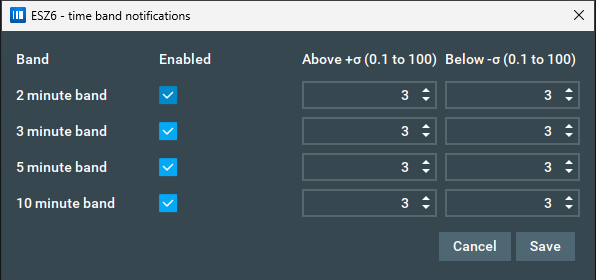
Click the bell on a tile to choose which time bands alert for that instrument, with separate thresholds for positive and negative readings of the chart's line.
| Column | Meaning |
|---|---|
| Band | The 2, 3, 5, or 10 minute window. |
| Enabled | Whether this window alerts for this instrument. Off by default. |
| Above +σ | Alert when the chart's line on this window rises through this many standard deviations. Default 3. |
| Below −σ | Alert when the chart's line on this window falls through this many standard deviations. Default 3. |
In Buy / Sell mode the Buy Line and the Sell Line each alert on their own.
An alert fires when the reading crosses the threshold, and re-arms once the reading comes back inside it. Alerts never fire while a window is warming up or the feed is stale.
Global notifications
The bottom section of the console is a single log shared by every instrument. Global alerts watch the line each chart is set to, on the primary window (the core line in Flow mode, the Buy and Sell lines in Buy / Sell mode) against one shared threshold, and are written as
15:53:34 ESZ6 Total Flow crossed +3.0σ (+4.3σ) (5m)
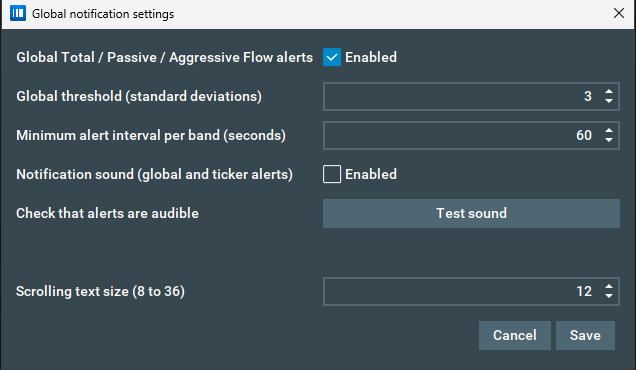
Click Global notification settings to change:
| Setting | Meaning | Default |
|---|---|---|
| Global alerts for each chart's own line | Turns the shared alerts on or off. | Off |
| Global threshold (standard deviations) | The σ level that triggers a global alert. | 5 |
| Minimum alert interval per band (seconds) | Quiet period before the same band can alert again. | 60 |
| Notification sound (global and ticker alerts) | Plays a sound for global and per-instrument alerts. Works while the console is hidden. | Off |
| Test sound | Plays the alert sound now, whatever the setting above, and says whether it played. Use it to check your volume and output device. | n/a |
| Scrolling text size (8 to 36) | Font size of the logs. | 12 |
Opening, hiding, and closing
The console is enabled by default and opens when the indicator loads.
- Bookmap: tick or untick Enable Pulling & Stacking Console in Settings → Configure add-ons → Pulling & Stacking Indicator. Closing the console window with its close button is the same as unticking the box: nothing reopens it until you tick it again. Opening the settings panel, accepting the terms, or adding another instrument never brings a minimised or hidden console back to the front.
The console does not stay above other windows unless you tick Console always on top in the same place. It is off by default.
Logs keep accumulating and sounds keep playing while the console is hidden. The console never places trades.
Next: indicator states
Chart images. The chart images on this site show the indicator's display on market data, to explain what it draws. They are not trading results or trade recommendations, and the risk and hypothetical performance disclosures above apply to them. We publish no trading performance. The full text is on the disclosures page.