What changed from version 2 to version 3
If you used the Pulling & Stacking Indicator 2.x on Bookmap, almost everything you relied on is still there in version 3. Most of it is switched on differently, though, and a few things did change. I wrote this page so you can find each 2.x feature quickly, get the 2.x view back if that's what you want, and know what to check before you rely on the new version.
The short version: 3.0 opens in Flow mode. To get the 2.x Buy, Sell and Delta lines back, set Line Mode to Buy / Sell, apply and restart, then switch the Delta line on from the gear menu. The steps are below.
Getting the 2.x view back
The Buy, Sell and Delta lines
The chart showed the Buy Order P&S and Sell Order P&S lines, and a Delta P&S line if you ticked the Delta checkbox in the indicator's settings.
The chart opens in Flow mode, with Total, Passive and Aggressive Flow. The buy and sell lines are now a line mode of their own, called Buy / Sell, and the Delta line comes with it.
To switch:
- In Bookmap, open Settings → Configure add-ons → Pulling & Stacking Indicator.
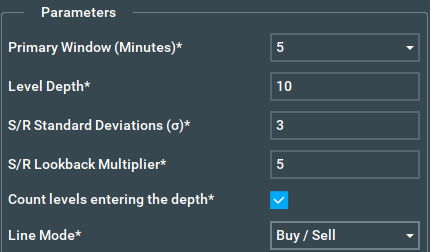
- Under Parameters, set Line Mode* to Buy / Sell.
- Leave Buy / Sell Lines* on With executions, the default. That pair is the 2.x reading.
- Click Apply core settings changes and restart indicators.
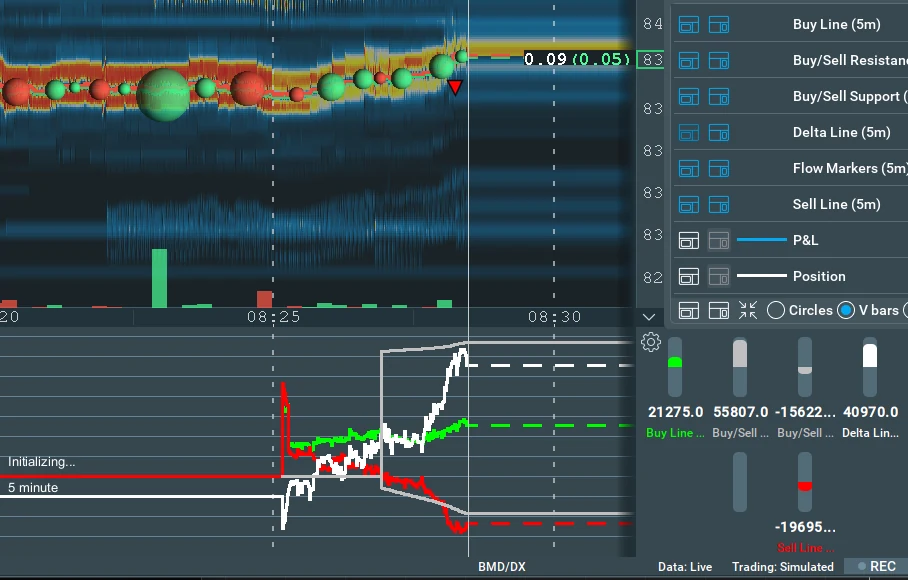
The lines are now called Buy Line (5m), Sell Line (5m) and Delta Line (5m), with the dotted
Buy/Sell Resistance and Buy/Sell Support lines around the buy and sell lines. The default colours
are the 2.x ones: buy green, sell red, delta white, and light grey for support and resistance.
The Delta line
You ticked Delta indicator (net buy order flow minus sell order flow) enabled, and the Delta line was drawn with the others.
In Buy / Sell mode the Delta Line (Buy Line minus Sell Line) is always there. Its bar shows in Bookmap's widget pane, and its line starts hidden.
To draw the line:
- Click the gear at the top of the indicator's widget pane.
- Find Delta Line (5m). It has two switches: the first draws the line, the second shows the bar. Turn on the first one.
- For the 2.x look in the widget pane, choose V bars at the bottom of the same menu.
The line comes back with its history, and its colour is under Line Colors in the settings. In Flow mode the same number is the Passive Flow line.
Alerts
You turned notifications on in the indicator's settings, set a level in standard deviations, and the alerts collected in the Notifications Hub window, with an optional chime.
Alerts live in the Pulling & Stacking Console. Global alerts are set in Global notification settings, and per-instrument alerts from the bell on each instrument's tile.
For the alerts you had in 2.x:
- In the console, click Global notification settings at the top right.
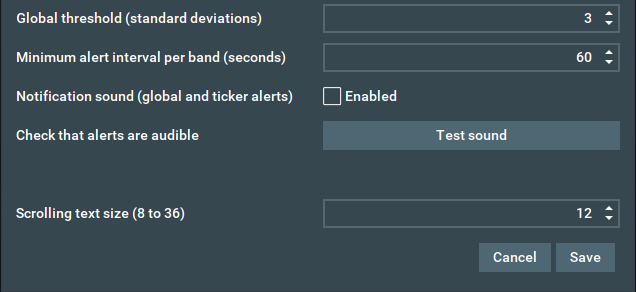
- Tick Global alerts for each chart's own line, and set Global threshold (standard deviations). The default is 5, as it was in 2.x.
- If you want the chime, tick Notification sound (global and ticker alerts), then press Test sound to check you can hear it.
Minimum alert interval per band (default 60 seconds) is the 2.x minimum delay between
notifications, and Scrolling text size (8 to 36, default 12) is the old Hub font size. The first
time 3.0 opens the console, it carries over your 2.x on/off choice and level. Alerts are written to
the Global notifications log at the bottom of the console, for example
BTC-USDT Buy Line crossed +3.0σ (+3.5σ) (5m).
For alerts on more than one timeframe, which in 2.x meant running a second or third indicator:
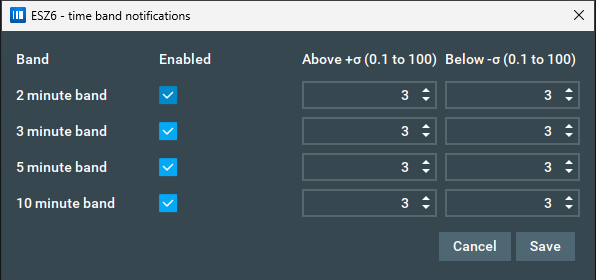
- Click the bell on the instrument's tile in the console.
- Tick any of the 2, 3, 5 and 10 minute windows.
- Set Above +σ and Below −σ for each one (default 3).
Each window alerts on its own, and the threshold up can differ from the threshold down.
The timeframe
You could run up to three indicators on one chart (Indicator 1, 2 and 3), each with its own Timeframe*: 30 seconds, or 1, 2, 3, 5, 10, 15 or 30 minutes.
One Primary Window (Minutes)* drives the chart lines: 2, 3, 5 or 10 minutes. All four windows are worked out together and shown side by side on the window ladder in the console.
- Under Parameters, set Primary Window (Minutes)*.
- Click Apply core settings changes and restart indicators.
Your 2.x timeframe isn't carried over, so the Primary Window starts at 5 minutes. Set it again if you used something else.
Support and resistance
Standard deviations (3 to 5, default 3) and a Timeframe multiplier (1 to 20) for the lookback, and a checkbox that turned the lines on and off.
S/R Standard Deviations (σ)* (1 to 10, default 3) and S/R Lookback Multiplier* (1 to 20, default 5), under Parameters. The lines are always drawn, and you can hide either one from the gear menu.
In Buy / Sell mode the band is worked out the same way as in 2.x: the average of the two sides' means, plus and minus your number of standard deviations. While a band is still filling in after a start, it is drawn dashed.
When a 2.x setup first loads in 3.0, both settings are reset once: standard deviations to 3 and the multiplier to 5. 2.x shipped with a multiplier of 10, so out of the box the 3.0 band looks back over half the time. To get the 2.x lookback, set S/R Lookback Multiplier* to 10 and apply.
The Notifications Hub window
Enable Notifications Hub, the option to keep the Hub always on top of other windows, and the Notification Hub font size.
Enable Pulling & Stacking Console and Console always on top, under Console & Chart Markers in the settings, and Scrolling text size in Global notification settings.
Closing the console window unticks Enable Pulling & Stacking Console. Tick it again to bring the console back. Console always on top is off for new users, and a setting you saved in an earlier version is kept.
What works the same
- Level Depth* (default 10), with the note that says what one level is on your instrument.
- Line colours, which still apply straight away without a restart.
- Settings saved per instrument.
- Apply core settings changes and restart indicators, with the same reminder (Not now / Restart) when you close the settings with changes not yet applied. The restart now keeps the warm-up history, so you don't wait all over again.
- The replay speed reminder, the Update available prompt, the Terms and Conditions, and Application Information.
New in the interface
Arrows on the price chart
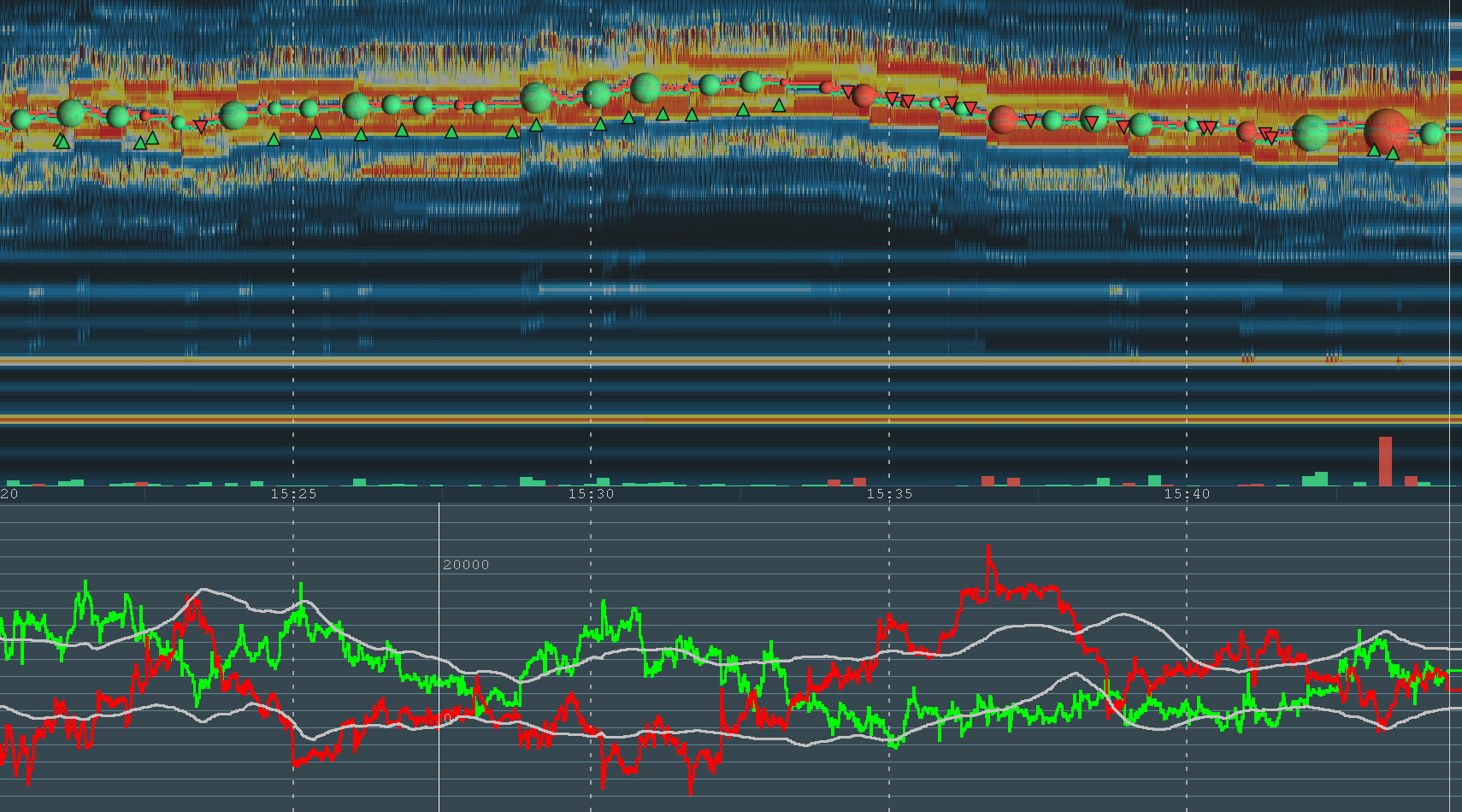
When the line you read crosses outside its own band on the primary window, the indicator draws an arrow on the price chart, where your eyes already are.
- A green arrow pointing up, below the price, is bullish: buy orders stacked, or sell orders pulled, beyond the band.
- A red arrow pointing down, above the price, is bearish: sell orders stacked, or buy orders pulled, beyond the band.
In Buy / Sell mode the Buy Line and the Sell Line draw arrows, and each can be switched off. In Flow
mode the core line draws them. The Delta Line draws none. Arrows appear only when the band is fully
warm and the feed is live, and each one adds a MARKER line to that instrument's log in the console.
Show flow markers on the price chart, under Console & Chart Markers, turns them all off.
An arrow is a prompt to look at the flow panel or the console. It is not a signal to trade.
The Pulling & Stacking Console
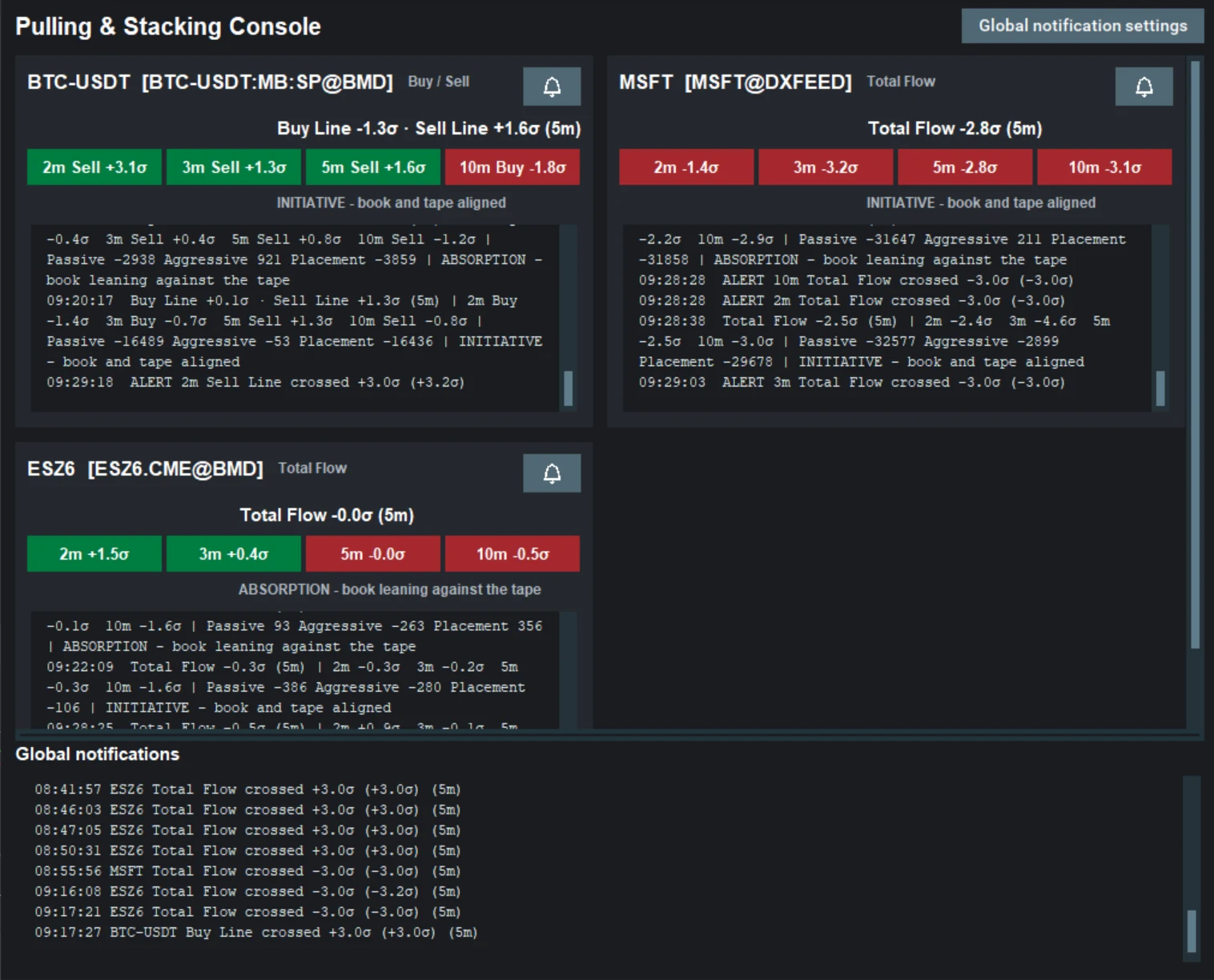
The console is one window for every instrument the indicator is running on. It takes the place of the 2.x Notifications Hub, and it shows a lot more:
- A tile per instrument. It names the line the chart is set to and has a bell for that instrument's alerts.
- The σ readout. The headline says how far each line is from its own band, in standard
deviations, for example
Buy Line +3.5σ · Sell Line -1.0σ (5m). In 2.x you judged that by eye against the dotted lines. - The window ladder. Badges for the 2, 3, 5 and 10 minute windows, side by side. A badge is green when that window's reading is bullish and red when it is bearish, so you can see whether a move is a short burst or has held across the longer windows.
- A log on each tile. It adds a line when the reading's state changes, and records that instrument's alerts and arrows.
- Global notifications at the bottom: one log of global alerts for every instrument.
Other new things
- Total, Passive, Aggressive and Placement Flow. Flow mode splits the order flow. Passive Flow is the resting book stacked or pulled (the 2.x Delta), Aggressive Flow is the executed volume delta, and Total Flow is exactly their sum on every event. Placement Flow, hidden by default, is Passive Flow with the executions taken out. See flow decomposition.
- The core line. In Flow mode you choose the line you read: Total, Passive or Placement Flow. The band, the arrows, the console and the alerts all follow it. See Placement Flow & the core line.
- Indicator states. In 2.x, "Initializing..." on the lines was all you saw while it warmed up.
3.0 warms up in stages, and the console says where it is:
WARMING UPwith a percentage, early readings marked~because they are provisional, andSTALEwith the time of the last event when the feed stops, so a dead feed doesn't look like a quiet market. See indicator states. - The deep-book warning, and absorption / initiative. A tile shows when the top of the book and the deeper book disagree, and whether the book is leaning against the tape or moving with it. I'd treat both as context rather than signals. See the deep-book warning and absorption & initiative.
- Restarts keep the warm-up. Applying core settings no longer starts the flow lines from zero, and adding the indicator to an instrument Bookmap already has open uses what Bookmap has received this session, so it may start part way warm, or fully warm.
- Two more parameters. Count levels entering the depth* chooses how a price level that moves into your Level Depth is counted, and Reset to default parameters puts the parameters back.
- The local data API. It is off by default. Turn it on and your own programs on the same computer can read the line values. See local data API.
- Updates and messages. Updates still come through the Bookmap Marketplace, with the same Update available prompt. The Terms and Conditions were revised, so you may be asked to accept them again. The Tips, Tutorials, and News window is gone: Help & Tips in the settings opens this website, and now and then the indicator may show a short message, at most one per Bookmap session. See updates & deprecation.
What to check after upgrading
A few things did change. I'd rather you hear them from me than find them on a live chart.
- One timeframe on the chart. 2.x could plot up to three timeframes at once. 3.0 plots the Primary Window. The other windows are on the console's ladder, and each one can alert from the bell.
- 2, 3, 5 and 10 minute windows only. The 30 second, 1 minute, 15 minute and 30 minute timeframes are gone. If one of them was the one you used, please tell me.
- No Delta band in Buy / Sell mode. The Delta Line has no Resistance and Support of its own. For a band around the 2.x Delta, use Flow mode with Core Line set to Passive Flow: Passive Flow is the 2.x Delta, and the band is then sized from it. You can't have the Buy and Sell lines and a Delta band on the same chart.
- Alerts follow the chart's mode. In Buy / Sell mode the Buy Line and the Sell Line alert, and in Flow mode the core line does. The Delta Line doesn't alert. Thresholds and messages are in standard deviations, not contracts.
- The S/R lookback is reset to 5. 2.x shipped with 10. Set S/R Lookback Multiplier* back to 10 if you want the 2.x lookback. These settings change what counts as a strong reading, so watch how they behave on your market before you rely on them.
- Your timeframe isn't carried over. The Primary Window starts at 5 minutes. Set it again if you used something else.
- The numbers may differ slightly. 3.0 updates on every market event, where 2.x checked the book 20 times a second. Even with the same settings, the lines may not match what you remember exactly.
- The Hub's colours and collapse button are gone. The log is plain text now. Green and red show on the ladder badges and the chart arrows instead.
Every 2.x control at a glance
| In 2.x | In 3.0 |
|---|---|
| Buy Order P&S / Sell Order P&S lines | Buy Line / Sell Line, in Buy / Sell mode |
| Delta P&S line (checkbox) | Delta Line in Buy / Sell mode, switched on from the gear menu; Passive Flow in Flow mode |
| Resistance P&S / Support P&S | Buy/Sell Resistance / Support (Flow Resistance / Support in Flow mode) |
| Delta Resistance / Support P&S | Flow mode with Core Line = Passive Flow |
| Indicator 1, 2 and 3, each with a Timeframe | One Primary Window (Minutes), plus the window ladder in the console |
| Timeframes 30 s to 30 min | 2, 3, 5 or 10 minutes |
| Standard deviations (3 to 5) | S/R Standard Deviations (σ), 1 to 10 |
| Timeframe multiplier (1 to 20, shipped at 10) | S/R Lookback Multiplier, 1 to 20, default 5 |
| Support and resistance lines enabled | Always drawn; hide them from the gear menu |
| Level Depth | Level Depth (same default, 10) |
| Notifications Hub | The Pulling & Stacking Console and its Global notifications log |
| Enable Notifications Hub | Enable Pulling & Stacking Console |
| Hub always on top | Console always on top |
| Notification Hub font size | Scrolling text size |
| Notifications beyond a level in standard deviations | Global alerts for each chart's own line, and Global threshold |
| Enable audible chime | Notification sound, plus Test sound |
| Minimum delay between notifications | Minimum alert interval per band |
| Alerts on each enabled indicator's timeframe | The bell on each tile, per window, above and below |
| "Initializing..." on the lines | The same label, plus indicator states in the console: warming up, provisional ~, STALE |
| Settings Overview and the support website button | Help & Tips |
| Tips, Tutorials, and News window | This website, and an occasional short message in the indicator |
Where to read more
- Getting started on Bookmap
- Line modes and buy & sell lines, including the Delta Line
- Support & Resistance, and calibrating the two parameters
- The console, notifications and the window ladder
- Indicator states
- Bookmap settings, every setting in one place
- All the documentation
If something you used in 2.x isn't on this page, email me at contact@stacksignal.com and I'll tell you where it went.
Chart images. The chart images on this site show the indicator's display on market data, to explain what it draws. They are not trading results or trade recommendations, and the risk and hypothetical performance disclosures above apply to them. We publish no trading performance. The full text is on the disclosures page.