MotiveWave settings reference
Open the study's settings by double-clicking its name at the top left of its panel, or with the gear on the study's toolbar. Update applies the changes and closes the window; Apply applies them and keeps it open. MotiveWave does not refresh an open settings window, so after Apply it goes on showing the values from before for anything the indicator changes itself (the Licence group, Reset To Default Parameters and the settings it resets, Show Terms and Conditions, Release, Enable Pulling & Stacking Console and Console Always On Top) until you close and reopen it; use Update for those. A later Update or Apply in such a window does not put those older values back: they are not applied, and Global notifications say which. A value you change there to something new is applied. The flow engine keeps running, so most changes keep the warm-up; changing Level Depth or Count Levels Entering The Depth starts it again, and changing the S/R Lookback Multiplier or Buy / Sell Lines warms the bands again over their lookback. Changing the Primary Window clears the lines already drawn in the panel; other changes keep them.
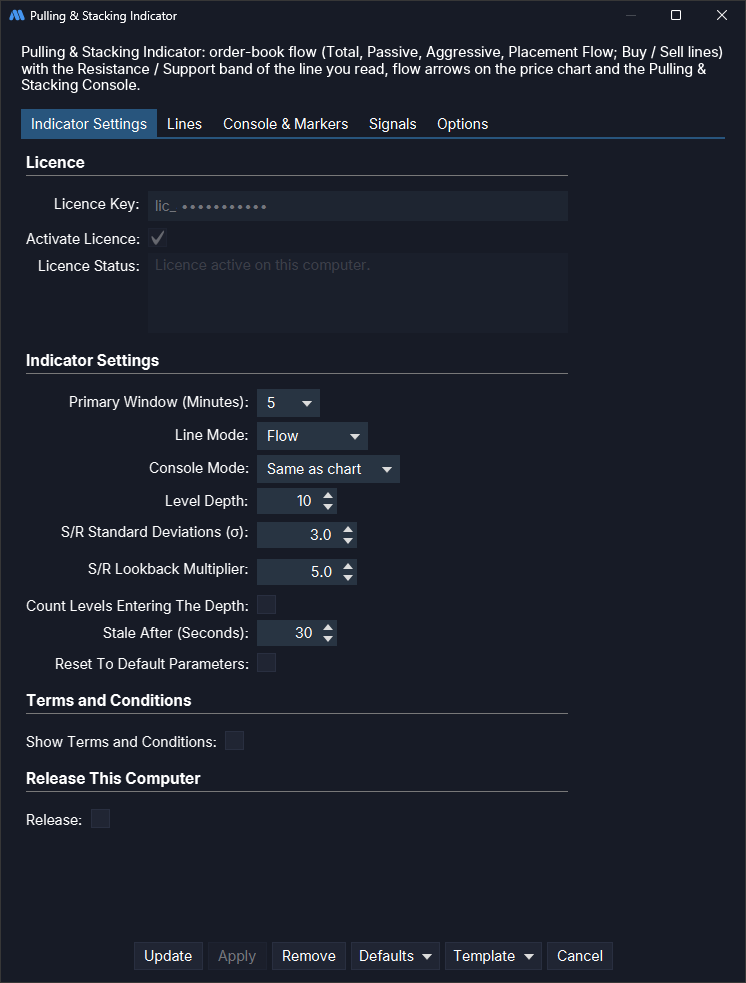
Indicator Settings tab
| Setting | Meaning | Default |
|---|---|---|
| Licence Key | In the Licence group at the top. Paste the key from your purchase email, then tick Activate Licence. Greyed out while the licence is active on this computer, when it shows only the start of the key. | |
| Activate Licence | Tick to activate the licence key above on this computer. While the licence is active on this computer the box stays ticked and greyed out; it clears, and can be ticked again, once the licence is released or no longer active. See activating your licence. | Off |
| Licence Status | What the licence is doing on this computer, for example Licence active on this computer. Read only; shows the whole message over several lines. |
|
| Primary Window (Minutes) | Which window (2, 3, 5 or 10 minutes) drives the lines, the band and the alerts. Changing it clears the lines already drawn. | 5 |
| Line Mode | Flow or Buy / Sell. See line modes. | Flow |
| Console Mode | What this instrument's console tile and its alerts read: Same as chart, Flow or Buy / Sell. A Buy / Sell console on a Flow chart warms its band over the full lookback (25 minutes at the defaults). Where several charts of one instrument share a tile, the first chart that loaded the indicator decides; on the others this setting has no effect (it is not greyed out there) until that chart's indicator is removed. See Console Mode. | Same as chart |
| Level Depth | How many bid and ask price levels are measured (1 to 100). Changing it starts the warm-up again. It also affects how often the deep-book warning appears. | 10 |
| S/R Standard Deviations (σ) | Width of every Resistance / Support band (1 to 10, in steps of 0.1). MotiveWave shows it as 3.0. | 3 |
| S/R Lookback Multiplier | Lookback of every band, and of the warm-up, as a multiple of each window (1 to 20, in steps of 0.5). Shown as 5.0. Changing it starts the bands' warm-up again: the console tile goes back to WARMING UP 0%. |
5 |
| Count Levels Entering The Depth | Off: a level entering the top Level Depth levels adds only its change in size. On: its full size counts as newly stacked. Changing it starts the warm-up again. It also affects how often the deep-book warning appears. | Off |
| Stale After (Seconds) | With no market data for this long (1 to 600), the bar being drawn turns grey and the tile shows STALE. It is also how long trades may arrive with no order book change before the tile shows ! ORDER BOOK DATA STOPPED. Set very low, the tile may switch between STALE and its reading every few seconds. |
30 |
| Reset To Default Parameters | Tick and click Update to restore Primary Window 5, Line Mode Flow, Console Mode Same as chart, Level Depth 10, S/R Standard Deviations 3, S/R Lookback Multiplier 5, Count Levels Entering The Depth off, Stale After 30, Core Line Total Flow, the default lines (Placement Flow hidden), Buy / Sell Lines With executions and no Delta Line. The console and arrow settings are not changed. When you open the settings again they show their defaults and this box is unticked. With Apply the open window keeps showing the old values; a later Update or Apply there keeps the reset. | Off |
| Show Terms and Conditions | In the Terms and Conditions group. Tick and click Update to read the terms again. Once you have accepted them, the window says, for example, You accepted these terms on 28 October 2026. and has a single Close button. The box is unticked again when you reopen the settings. With Apply the window you clicked it in still shows it ticked, and the terms do not open again at its next Apply. |
Off |
| Release | In its own Release This Computer group at the bottom. Tick and click Update to stop using your licence on this computer. There is no confirmation step: the licence is released at once. When you reopen the settings the tick has reset, Activate Licence is unticked, and Licence Key and Activate Licence can be used again. With Apply the open window keeps showing the licence as active until you reopen it; its next Apply does not release again. | Off |
Lines tab
| Setting | Meaning | Default |
|---|---|---|
| Core Line (Flow mode) | Total, Passive or Placement Flow. The band, the arrows and the console follow it; the band is redrawn over the kept history. | Total Flow |
| Show Total / Passive / Aggressive / Placement Flow | Which Flow lines are drawn. The tick stays as you set it. A hidden line keeps its history. | On, on, on, off |
| Buy / Sell Lines | With executions or Placement only. | With executions |
| Show Delta Line | Buy / Sell mode: draws Buy minus Sell, in white, with no band. | Off |
| Colors | Colour and width of every line and band. Each band also has a "(provisional)" entry: the colour and width of the band while it is provisional, drawn dashed. The band's own entry applies once it is fully seeded, drawn dotted. The zero line before a band shows, and a stale bar, stay grey. Each entry also has MotiveWave's line style list; the bands start dotted (seeded) and dashed (provisional), and a style you choose there may replace that look. | Total Flow cyan (2 px wide), Passive Flow grey, Aggressive Flow orange, Placement Flow violet, Buy Line green, Sell Line red, Delta Line white, bands light grey (dotted), provisional bands grey (dashed) |
Console & Markers tab
| Setting | Meaning | Default |
|---|---|---|
| Enable Pulling & Stacking Console | Shows the shared console. Closing the console with its close button unticks this on every chart; tick it and click Update on any chart to open the console again and bring it to the front, and the other charts tick theirs again. The right-click menu of the study's name (top left of its panel) or of one of its lines has Show Pulling & Stacking Console for the same; it also brings a minimized console back, which an Update that changes nothing may not do (MotiveWave may not pass it on). A settings window opened before the console was closed still shows it ticked, and its Update does not reopen the console. See closing and reopening the console. | On |
| Console Always On Top | Keeps the console above other windows, but not above the study settings window while it is open. The question when you shut MotiveWave down and the alert popup can open behind it: minimize the console to reach them. One setting for the one console: the chart where it was changed last decides, and every other chart's box follows within about a second. | Off |
| Show Flow Markers On Price Chart | Master switch for the arrows. Arrow colours are fixed: green up is bullish, red down is bearish. | On |
| Buy Line Arrows / Sell Line Arrows (Buy / Sell mode) | Which of the two lines draw arrows. Greyed out while the master switch is off and in Flow mode, where they do nothing; they keep their tick. | On, on |
Signals
The indicator declares these MotiveWave signals:
- Flow marker (line crossed its Resistance / Support), raised with every
price-chart arrow, with the
MARKERtext. - Pulling & Stacking alert, raised with every per-instrument and global alert.
Both are listed on the study's Signals tab. MotiveWave starts with them off, and the indicator cannot switch them on, so this step is required for alerts and arrows to reach MotiveWave's Alerts panel:
- All, beside the Signal list, is ticked already: leave it ticked, so the settings below apply to both signals. Clicking it unticks it, and the settings then apply only to the signal shown in the list (if you did, tick it again).
- Tick Enabled.
- Choose the popup, sound or email you want, and click Update.
When you open the settings again, All and Enabled are ticked. The console's own alerts (the bell and Global notifications) work without this step, and unticking Enabled does not affect them.
Alerts
Alert thresholds are set in the console: the bell on the instrument's tile, and Global notification settings. See notifications. The default global threshold is 3σ.
Chart images. The chart images on this site show the indicator's display on market data, to explain what it draws. They are not trading results or trade recommendations, and the risk and hypothetical performance disclosures above apply to them. We publish no trading performance. The full text is on the disclosures page.