Getting started on MotiveWave
The indicator for MotiveWave is one file, PullingAndStackingIndicator.jar, for
MotiveWave 7.1 or later. It needs a data connection that provides market depth
(the order book) and trades for the instrument. It works on live data: replay is
not supported (see limitations).
Install
- Download the MotiveWave zip from your Stack Signal account and unzip it. It
holds the jar, a
.sha256file with its checksum, andINSTALL.md. To check the file on Windows, runGet-FileHash PullingAndStackingIndicator.jarin PowerShell in that folder and compare the hash with the one in the.sha256file. PowerShell prints the hash in capital letters and the file has it in small letters: that is the same hash, only the letters' case differs. The files are not code-signed, so Windows SmartScreen or your antivirus may warn you. Check the hash first, then allow the file (for the downloaded zip: right-click it, Properties, Unblock). - In MotiveWave choose Study > All Studies (Ctrl+T), click Import, then
Add, select
PullingAndStackingIndicator.jarand click Import.
Or copy the jar into the MotiveWave Extensions folder in your home folder (the
folder itself, not a subfolder such as lib) and restart MotiveWave:
C:\Users\<your name>\MotiveWave Extensions on Windows,
/Users/<your name>/MotiveWave Extensions on macOS and
/home/<your name>/MotiveWave Extensions on Linux.
Tested on MotiveWave 7.1.2 on Windows. The indicator needs Java 25 or newer. You do not install Java yourself: MotiveWave includes its own Java runtime, and every MotiveWave 7.1 release includes Java 25 or newer. If the study does not appear after you import it, update MotiveWave to its latest version.
First chart
- Open a chart of the instrument you trade.
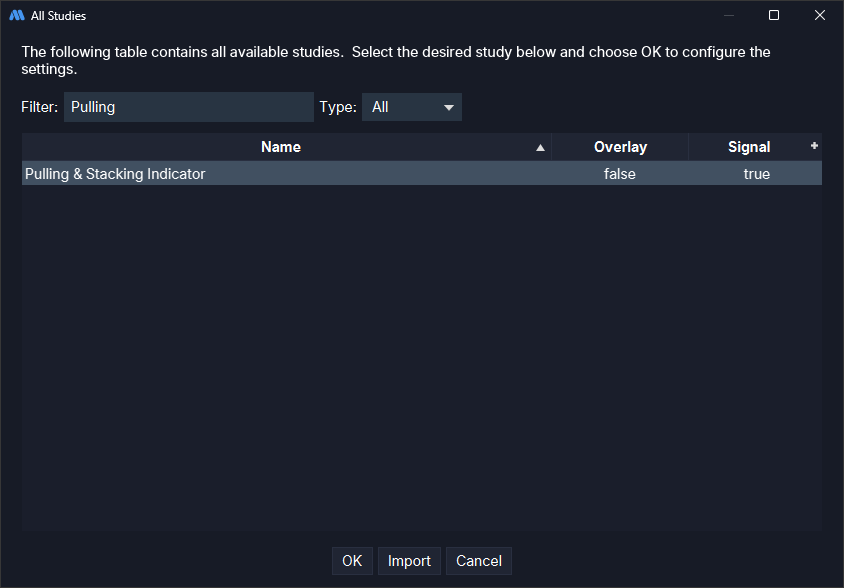
- Choose Study > Stack Signal > Pulling & Stacking Indicator. Or choose Study > All Studies (Ctrl+T), type "Pulling" in the filter, select Pulling & Stacking Indicator and click OK (the All Studies list has no groups).
- The settings window opens. Click Add to start with the defaults.
- The first time, the Terms and Conditions window opens. Read them and click I accept the Terms and Conditions. The terms come with the indicator, so this step does not need an internet connection. Until you accept, the indicator draws nothing and the console does not open. Not now, or closing the window, puts it away until you next start MotiveWave.
To read the terms again later, open the study's settings, tick Show Terms and
Conditions (in the Terms and Conditions group on the Indicator Settings
tab) and click Update. The terms window opens; once you have accepted the
current terms it says, for example,
You accepted these terms on 28 October 2026. (the date you accepted them) and
has a single Close button, and closing it changes nothing. If you have not
accepted them yet, or a newer version of the terms has come out, it asks you to
accept them as the first time. When you open the settings again, Show Terms
and Conditions is unticked. With Apply the terms open too, but the window
you clicked it in still shows the box ticked; clicking Apply again there does
not open the terms a second time.
The lines are drawn in their own panel under the price chart, and the arrows on
the price chart. From the first trade or order book change, until one full window
has been seen (5 minutes at the defaults), the lines are drawn grey, at zero, in
the middle of the panel. Once you accept the terms, the
Pulling & Stacking Console opens in a window of its own, in front of
MotiveWave, with one tile per instrument. Until you activate your
licence (next section), the tile shows
PAUSED - licence required (see the indicator settings) and the indicator draws
nothing. Once it is active, the tile shows WAITING FOR ORDER BOOK DATA, then
WARMING UP; with the default settings the Resistance and Support band needs
about 25 minutes of data. The indicator measures the live order book from the
moment you add it; it does not fill in the history already on the chart.
The indicator's panel can open quite short, so the grey warm-up lines are easy to miss: drag the panel's top edge up to make it taller.
Market depth. The console tells you whether depth arrives: if no depth
arrives, after 15 seconds the tile's state line says No Level II depth received;
if no market data arrives at all, after a minute it says
No market data received. Check the data connection, and that the instrument is trading.
To look at the depth yourself, MotiveWave's DOM for the instrument (in MotiveWave
7.1, File > New > DOM Window) should show several price levels on each side,
changing as the market moves. The DOM is also an order entry window, so only look
at it there.
Activate your licence
The licence key is in the email you get when you subscribe, and starts with lic_.
Until it is active, the indicator draws nothing and the tile shows PAUSED with
the reason.
- Open the study's settings: double-click its name at the top left of its panel. Or move the mouse over the panel: a small toolbar appears at the bottom centre of the panel, and its gear opens the settings. (The gear that appears next to the study's name when you point at it only selects the study.) The settings window can open small: scroll down, or drag its edge to make it taller, to reach the groups at the bottom of the tab (Reset, Terms and Conditions, Release This Computer).
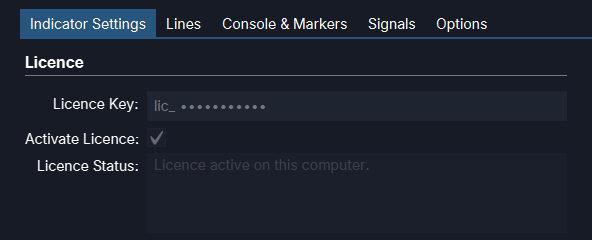
- On the Indicator Settings tab, the Licence group is at the top. Paste your key into Licence Key.
- Tick Activate Licence and click Update.
What you see afterwards:
- After a few seconds the console's Global notifications say
Licence active on this computer., the tile leavesPAUSEDand startsWARMING UP, with no warning about the order book data. - When you open the settings again, Activate Licence is ticked and greyed out,
Licence Key is greyed out and shows only the start of your key, for example
lic_XXXX••••••••, and Licence Status readsLicence active on this computer. - When you add the indicator to another chart, its settings window shows the same from the start: there is nothing to activate again.
Use Update for this step. Apply activates the licence too, but the window stays open and goes on showing the values from before, Licence Status included, until you close and reopen it: MotiveWave does not refresh an open settings window. Clicking Apply again in that window does no harm. The key is kept for this computer, not in the chart or a template. One key covers one computer, whichever of our supported platforms you use on it.
The indicator needs an internet connection: it runs only while the licence
server confirms your licence, and there is no offline period. Without a
connection it pauses, also when MotiveWave starts without one: the tile shows
PAUSED - could not reach the licence server, and Global notifications and
Licence Status say
Could not reach the licence server. Check your internet connection. The indicator starts again once it connects.
It keeps trying, and starts again by itself once it connects, carrying on with
the warm-up it had (after a long pause the warm-up starts again). If the connection drops
for a moment while the indicator is running, it goes on for up to 2 minutes while
it tries again; Global notifications and Licence Status then say
Licence active. Could not reach the licence server, trying again. The indicator pauses if it cannot connect within 2 minutes.
If the key is wrong, Licence Status says
We could not find that licence key. Check it and try again.
The key field then shows the key as you typed it (a key is hidden only once it
is active), so you can check it, correct it and tick Activate Licence again.
To replace it, select the old key with the mouse (Ctrl+A may not select the text
in this field) or delete it, then paste the new one.
Release this computer
To move your licence to another computer, release it on this one first: open the
study's settings and, on the Indicator Settings tab, in the Release This
Computer group at the bottom, tick Release and click Update. There is no
confirmation step: the licence is released at once. Global notifications say
This computer has been released from your licence. Enter your licence key again to use the indicator here.,
the tile shows PAUSED with the reason, and the indicator stops here (its name
on the chart stays the same: MotiveWave does not redraw a study's name when it
changes, so the console and MotiveWave's log show the state). When you
open the settings again, Release and Activate Licence are unticked,
Activate Licence and Licence Key can be used again, the key field is empty,
and Licence Status shows the whole released message. After a restart of
MotiveWave, Licence Status and Global notifications say
Licence required. Enter your licence key in the indicator settings, then tick Activate Licence.
If you activate again on this computer instead, the indicator carries on with
the warm-up it had; after a long pause the warm-up starts again. Right after
the licence is active again the tile goes straight back to its reading (it may
show PAUSED - checking your licence for a moment first). A band that was
beyond its alert threshold when you released can alert once more after the
re-activation: see notifications.
With Apply the release is made too, but the open window goes on showing the
licence as it was (Licence Status still says Licence active on this computer.)
until you close and reopen it. Clicking Apply again in that window does not
release a second time.
If the release cannot reach the licence server (no
internet connection), Licence Status says
Could not release this computer. Check your internet connection and try again.
and Activate Licence goes back to ticked and greyed out.
If the licence is no longer active (your subscription ended, or the licence was refused), the tick clears and both controls can be used again; Licence Status says why. If it says the licence is active on another computer, release it there first, then tick Activate Licence again on this one. Activate your key on the new computer. If you can no longer reach the old computer, write to contact@stacksignal.com.
The console
The console is one window for all your charts. Each instrument gets a tile with its headline, the 2, 3, 5 and 10 minute badges, a state line and a log. Alerts are set in the console: the bell on a tile for that instrument, and Global notification settings (top right) for every instrument. See the console and notifications. The indicator also offers MotiveWave signals, for arrows and for alerts, so MotiveWave's own alert options (sound, popup, email) can be used with them.
MotiveWave alerts (optional). The console's alerts (the bell and Global notifications) work without this step. For alerts and arrows to also reach MotiveWave's Alerts panel, you must enable the signals, because MotiveWave starts with them off: open the study's settings and go to the Signals tab. All (beside the Signal list) is ticked already: leave it ticked, so your choices apply to both signals. Clicking it unticks it, and the settings then apply only to the signal shown in the list. Tick Enabled, choose the popup, sound or email you want, and click Update. When you open the settings again, All and Enabled are ticked. If you unticked All by mistake, tick it again before you tick Enabled. See MotiveWave signals.
Closing and reopening the console. Closing the console window with its close button does not remove the indicator. Within about a second Enable Pulling & Stacking Console (on the Console & Markers tab) shows unticked on every chart with the indicator, and the console stays closed, also after a restart of MotiveWave. To reopen it, open the study's settings on any chart, tick Enable Pulling & Stacking Console and click Update: the console opens and the other charts show the box ticked again. Or right-click the study's name at the top left of its panel (or one of its lines) and choose Show Pulling & Stacking Console; a right-click on an empty part of the panel shows MotiveWave's chart menu instead. Unticking the box on one chart closes the console everywhere. A settings window that was already open when you closed the console still shows the box ticked: MotiveWave does not refresh an open settings window. Clicking Update or Apply there does not reopen the console, and Global notifications say that the window's older values were not used. Close that window and open it again to change the setting.
The console is a window of its own. It is not listed in MotiveWave's Window menu (the platform does not let an indicator add it); it is on the Windows taskbar. When it opens (the study added, also after it was removed from the last chart and added again) it comes to the front. With Console Always On Top off (the default), a click in MotiveWave can put it behind MotiveWave's window, and opening the study's settings can minimize it. To bring it back, right-click the study's name and choose Show Pulling & Stacking Console: it comes to the front, also from minimized. Update with the box ticked does the same, but only when MotiveWave passes the Update on to the indicator, which it may not do when nothing in the settings changed; the menu item always works, and so does the console's button on the Windows taskbar. Apply with the box ticked does not bring it over the settings window you are working in. Tick Console Always On Top and click Update to keep it in front. It is one setting for the one console: the chart where it was changed last decides, and within about a second every other chart's box shows the same. While the study settings window is open the console steps behind it, also when an alert fires, and it is on top again when that window closes. Other MotiveWave windows may stay behind it: the alert popup, and the question when you shut MotiveWave down, which can open behind the console and cover its Yes button. Minimize the console (or untick Always On Top) to reach such a window.
What the alert controls show. The bell looks the same whether or not any band is enabled for that instrument: there is no armed sign on the console. Click it to see which bands are on and their thresholds. Save closes the dialog and keeps the choices, and Cancel discards them. Nothing on the console shows whether the global alerts are on: open Global notification settings to check. An alert that fires is written to the tile's log, or to Global notifications, so the logs show what has alerted.
Where your settings live
- The study's settings are saved with the chart in your MotiveWave workspace.
- The console's settings (the alert thresholds, global notifications, sound,
text size, the window's place and size, and whether you closed it) are saved for
your user in the
.stacksignalfolder in your home folder, and come back the next time MotiveWave starts. - The licence, and your acceptance of the terms, are kept for this computer in
%LOCALAPPDATA%\StackSignal\PullingAndStackingon Windows and inLibrary/Application Support/StackSignal/PullingAndStackingin your home folder on macOS (AppData/Local/StackSignal/PullingAndStackingin your home folder on Linux).
Every setting is described in the MotiveWave settings reference.
Platform notes
- Restart MotiveWave after updating. After you import a new version, restart MotiveWave so every chart runs it. Your workspace, console settings and licence are kept.
- Changing the Primary Window clears the lines drawn before the change. The panel stays empty until the next bar starts (up to a bar's length, for example about a minute on a 1 minute chart), then the lines carry on in their colours from there: the readings were already warm, so there is no grey zero stage. Other settings keep the lines already drawn. The console keeps its readings.
- Reset To Default Parameters: tick it and click Update. When you open the settings again, the settings it covers (listed in the settings reference) show their defaults and Reset To Default Parameters is unticked. With Apply the reset is made, but the open window goes on showing the old values, with Reset ticked, until you reopen it. Clicking Update or Apply in that window afterwards keeps the reset: the old values it still shows are not applied, and Global notifications say so. A value you change in that window to something new is applied. To change the others, close the window and open it again. Defaults, MotiveWave's own button at the bottom of the window, is a MotiveWave feature and is separate from this reset.
- A Buy / Sell band (a chart in Buy / Sell mode, or Console Mode Buy / Sell on a Flow chart) starts when you choose it and warms over the full lookback (25 minutes at the defaults) before its readings are fully seeded.
- Crypto and other instruments traded in fractions. Where order sizes are fractional (for example bitcoin), sizes are counted in millionths (1 BTC reads 1,000,000). The shapes, bands, σ readings and arrows are unaffected.
- MotiveWave's log (
%APPDATA%\MotiveWave\outputon Windows) also gets the tile's state and alert lines, asPulling & Stacking <symbol>: .... - Removing it: remove the study from the chart (the bin icon on the toolbar that
appears at the bottom centre of its panel when you point at it, or Remove in
its settings). Its tile leaves the console within about 15
seconds, and removing it from the last chart closes the console. If no market
data is arriving when you remove it (for example while MotiveWave is
disconnected), the tile can stay, showing
STALE, until data arrives again; it shows no new reading and leaves within a few seconds of the first trades. A study added to that instrument in the meantime takes the tile over then. To uninstall, deletePullingAndStackingIndicator.jarfrom the MotiveWave Extensions folder and restart MotiveWave.
Next: the flow decomposition · MotiveWave settings reference · the console
Chart images. The chart images on this site show the indicator's display on market data, to explain what it draws. They are not trading results or trade recommendations, and the risk and hypothetical performance disclosures above apply to them. We publish no trading performance. The full text is on the disclosures page.